
Client Dashboard: "Labels- Manage label - To Send" Section
The "To Send" section in the client dashboard is designed to streamline the creation and management of shipping labels for dispatching inventory. This feature simplifies the process of generating labels for shipments, ensuring that all necessary details are captured and accurately recorded.
Key Features of the "To Send" Section
- To Send Label
- Allows users to initiate the process of generating a new label for shipment.
- This option is especially useful when preparing dispatches, as it allows you to create shipping labels based on the product details provided by the warehouse. These labels can then be used to send your shipment to the desired destination, such as Amazon or directly to your customers.
- View All Labels
- Provides a centralized area to track and organize all previously created labels.
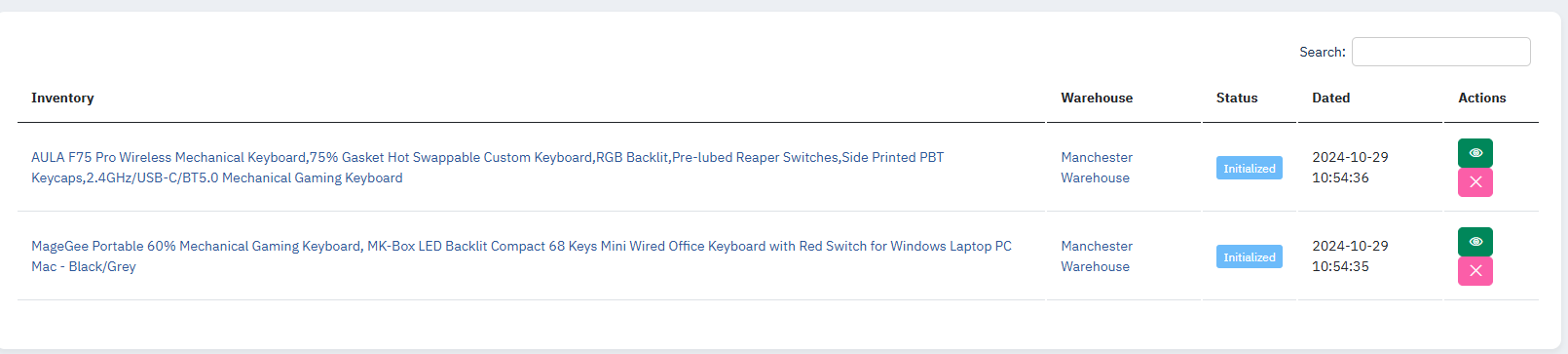
- Users can view the status of each label, whether pending, sent, or awaiting courier pick-up.
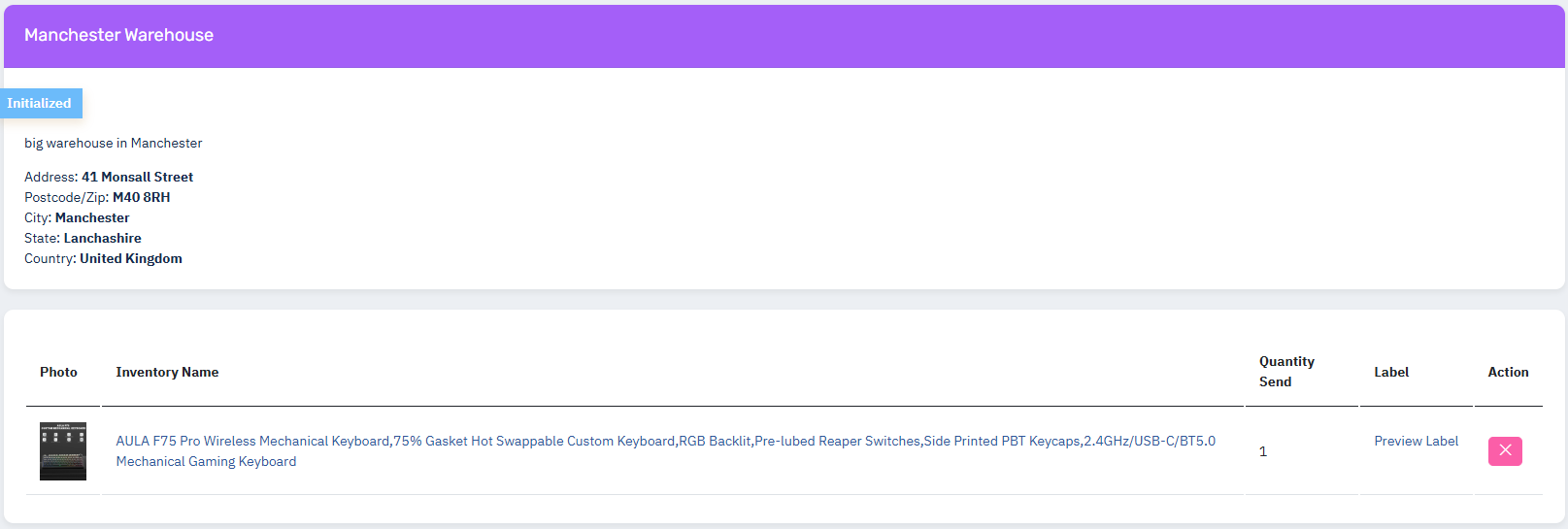
- using view icon
 you can view details and label you send to you warehouse
- Add new Label
- Displays a list of products that are ready to be labeled but currently shows "0 ITEMS" when no products are selected for dispatch.
How to Add a New Label on KS Warehousing
To create a new label for your product, follow these steps:
Step-by-Step Guide
Go to Inventory:
- Navigate to the Inventory section on your KS Warehousing dashboard.
Select the Product:
- Identify and select the product for which you need to create a label.
Send to Dispatch:
- Add the product to a new Dispatch Request and submit it for warehouse approval.
- Include all necessary details like the destination warehouse and any specific instructions.
Wait for Warehouse Confirmation:
- The product will remain in "Pending" status until the warehouse processes and accepts the dispatch request.
- Once approved, the warehouse will send a confirmation back to your dashboard.
Create a Label:
- Use your courier service (e.g., UPS, FedEx) or Amazon’s label system to generate a shipping label.
Send the Label to the Warehouse:
- Return to the KSW system and upload the label.
- Attach the generated label to the corresponding dispatch request for the warehouse team to process further.
Important Notes
- Label Creation Timing:
- Ensure the product has been accepted by the warehouse before creating and uploading the label.
- Notification Updates:
- You will receive a notification via the dashboard or email once the warehouse confirms the request.
- Efficient Workflow:
- By following this process, you ensure that the warehouse has all required information and labels to process the shipment correctly.
This workflow ensures a smooth and accurate label creation and dispatch process for your inventory.